‘Internet of Things’ is awesome. Things were connected before also and real-time telemetry were being used prior also, but cloud has commoditize it now. Earlier where only corporation were able to do real-time monitoring of their equipment, today even people like me can build-deploy-monitor also :-). That’s is what cloud has made difference.
- Cost of innovation has gone down.
- Potentials to explore IOT has gone beyond tradition industry i.e. heavy industry to non traditional target industries like agriculture or even home security
- Extreme compute (not just heavy size but computer at micro size and even at edge) and storage power (& innovation) is helping building new architecture. example: Modern architecture where we can do IOT @ Edge or @ Central location. Choice is dependent upon business problem.
So, I had tested out IOT experiment. It might be simple for few of you and some of you may have already tested this. But, I am just trying to put down things which I learnt during this way. I wanted to cover entire life-cycle i.e. Data, Compute, Collection, Analysis, Visualization
Scenario: Real-time House monitoring temperature in (degree Celsius) and Humidity (%) and publishing dashboard so that end user, on browser/mobile app/desktop, can track telemetry for any given point of time.
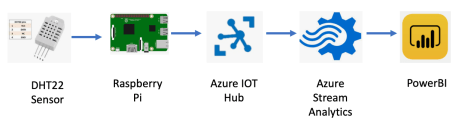
Tool Used:
- Raspberry Pi 3 B and it’s kit components specifically, micro memory card, male/female jumper wire, Breadboard
- DHT22 Sensor
- Azure Subscription (trial is good enough for this experiment)
- Azure IOT Hub
- Azure Stream Analytics Jobs
- PowerBI Subscription (Free version is good enough for this experiment)
Key Things to Take Care Before Experiment:
- V Imp: If you are beginner on Raspberry Pi, please read through thoroughly how ‘Pinouts’ are being placed. What is pin numbering and which pin is meant for what purpose. Failing to do so, your Pi or Sensor would be damaged. (my sensor was almost damaged as under excitement I get into act straight after buying it).
- Azure plan for IOT Hub and Stream Analytics jobs should be carefully chosen. If you are individual, just doing testing water, then ideally go for Free Tier and lowest ‘scale unit’.
- Taking telemetry frequency can be reduced to decent interval (like 10 second or 1 minutes). No need to go almost per second based data collection, this would only consumed more resource at all places i.e. Pi/Azure.
How to Go Ahead:
- Plug Raspberry PI and enable SSH and I2C
- GUI Way: Preferences -> Raspberry Pi configuration -> Interfaces Tab
- Command Line: sudo raspi-config
- Connect Sensor to Pi
- Using Breadboard map ping carefully
- Connect Pin 1 of DHT22 to Pi Pin 1 (meant for providing 3.3v)
- Connect Pin 2 of DHT22 to Pi Pin 3 (mean for interface I2C1 SDA)
- Connect Pin 3 of DHT22 to Pi Ground pin (meant for GND)
- Ignore Pin 4 of DHT22 for this experiment.
- Using Breadboard map ping carefully
Explanation: Pin 1 would give Sensor Power, Pin 2 is going take out telemetry from sensor, Pin 3 is simply performing Ground
3. Check if things are in well shape
- I prefer using Mac because it’s terminal experience in it makes life easy. Just SSH Pi using Private IP (check it in your local network LAN or inside Pi run ‘ifconfig’ on terminal)
- Install DHT22 libraries from Adafruit; (in simple language: every sensor has their own software libraries which allow hardware to interact with software)
sudo apt-get update
sudo apt-get upgrade
sudo apt-get install build-essential python-dev python-openssl python-pip(get python libraries)
sudo apt-get install git (Install git if not present)
git clone https://github.com/adafruit/Adafruit_Python_DHT.git
cd Adafruit_Python_DHT
sudo python setup.py install
- Once the DHT libraries are installed, test the installation and configuration by going into it’s directory
cd /home/pi/Adafruit_Python_DHT/examples
sudo ./AdafruitDHT.py 22 2
In return to above command, terminal should be showing return result of temperature and humidity recorded by sensor.
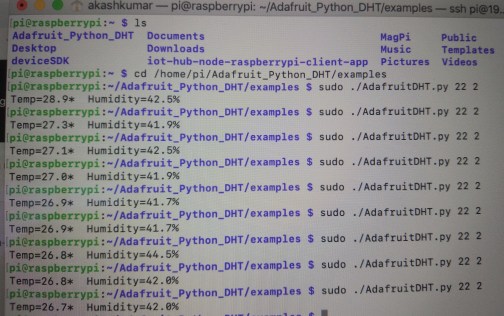
If readings are coming, then we are good to go ahead.
- As local reading are happening, time to take it to next level. Run following command on Pi to clone suitable setup for Azure IOT
git clone https://github.com/Azure-Samples/iot-hub-python-raspberrypi-client-app.git
sudo chmod u+x setup.sh
sudo ./setup.sh
- Go inside Client App directory and update Python Config file with DHT22 sensor Pin, Interval you want to take reading. Defining interval is important so that you don’t overshoot free tier or single scale unit
cd iot-hub-python-raspberrypi-client-app
nano config.py
- Just one more step and Pi can be connected to Azure, thus it can be taken to next level. Assuming you have created your Azure IOT hub prior and Device created under it. String can be taken out under Device Property.
python app.py ‘<Azure IoT hub device connection string>’
- Now, you can run sudo ./setup.sh command and start seeing reading, which is getting pushed to AzureIOT. You can create CRON job to keep it running to run in background.

- Go inside Azure IOT Hub–> Monitoring –> Metrics –> Define duration filter –> choosing Resource group/namespace/total number of message–> start seeing messing pattern coming on graph. If there is graph pattern that means, data is coming in IOT Hub
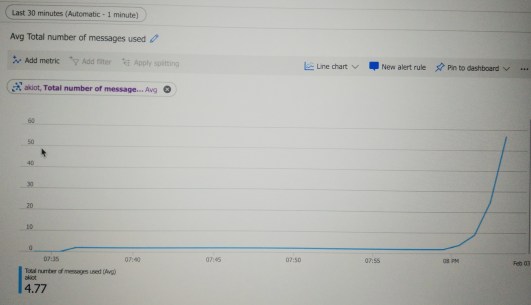
- In your Azure Stream Analytics,
- Create Job topology ‘Inputs’. Create Alias name and Endpoint ‘Messaging’ and rest all default.
- Create Job topology ‘Outputs’. Create Alias name and Chose Work-space, Create ‘Dataset name’ and ‘Table name’.
- Authorize your PowerBI here (in case you don’t have PowerBI account, create one)
- Then, create Query by replacing default alias provide between [] with your inputs and outputs Alias. Them, save it.
- If there is no error, then hit ‘Start’
- In PowerBI, you can start seeing your Datasets under your Workspace–> Datasets
- After just create dashboard of 2 line graph, taking telemetry of ‘Temperature’ and ‘Humidity’ on Y-axis while X-axis as EventEnqueuedUtcTime
- If you are PowerBI Pro user, you would have capability of Publishing it to Web and many more features like frequency of updating on Dashboard etc. While you can still see in PowerBI Mobile App without any cost.
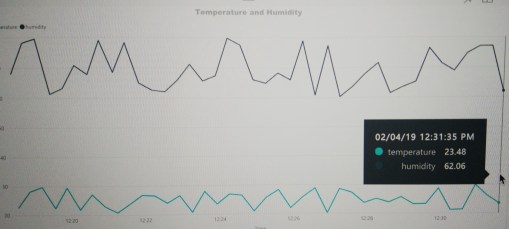
- Overall lab look like 🙂
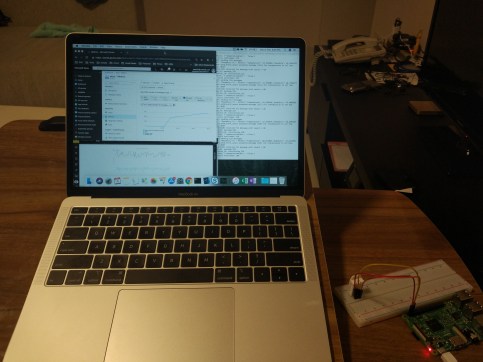
I shall be exploring few more things going forward and share what I build and found. Any suggestion or inputs are always welcome. From my side only suggestion, always review documentation in details before getting into act. Sometime, minor details makes big difference.
 Cloud Gyan